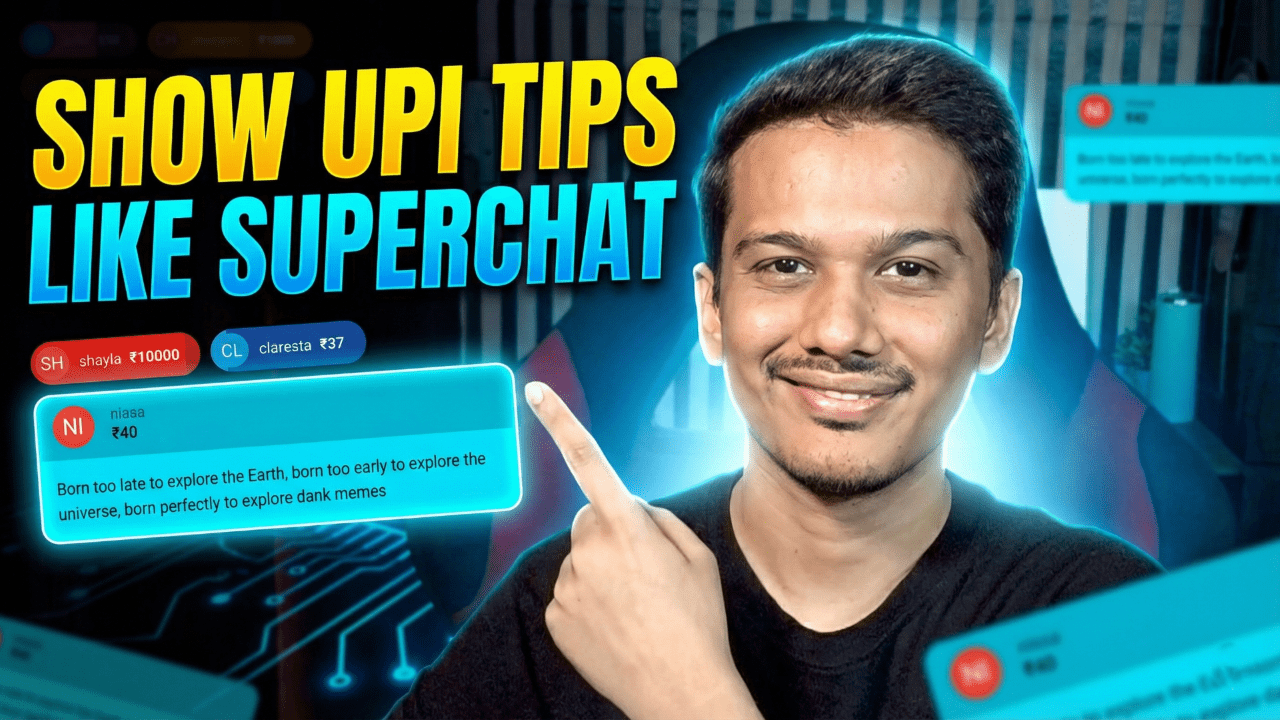
How to Display UPI Tips in Superchat Style | StreamElements Widget
The Problem with Streaming in India If you are a live streamer in India, you know the struggle. You want to receive support from your viewers, but YouTube Super Chats take a massive 30% cut of your hard-earned money. That means for every ₹100 a fan sends, you only keep ₹70. That is why smart streamers are switching to blog.streamtipz.in/. StreamTipz allows you to keep 92% of your earnings (compared to YouTube’s 70% or other platforms that give you even less). Plus, the money is sent directly to your UPI ID daily without you having to request a withdrawal manually. But There Was One Problem… Until Now While StreamTipz solves the money problem, many streamers felt the alerts looked too simple compared to YouTube’s colorful Super Chats. You want that VIP feeling for your supporters, right? Today, that changes. I have developed a custom StreamElements Widget that bridges this gap. Now, when a viewer supports you on StreamTipz, it will appear on your stream in the exact same professional style as a YouTube Super Chat. Why You Should Use blog.streamtipz.in/? If you aren’t using StreamTipz yet, here is why you should switch: Features of This Custom Alert Box This widget is fully coded to make your StreamTipz alerts look indistinguishable from native YouTube features. 1. Unified Professional Look Imagine a viewer sends you ₹100 via StreamTipz. Instead of a generic alert, a beautiful Green Super Chat Card slides onto your screen. It displays their name, amount, and message exactly like a YouTube Super Chat. 2. Smart Currency Logic The widget is intelligent. It detects the value of the tip and assigns the correct “Super Chat Color” automatically: 3. The “Sticky Pill” Animation To keep your stream clean: 4. “Blast” Exit Animation When the alert is done, it doesn’t just fade out—it explodes into a burst of particles for a premium feel. Video Tutorial & Demo Want to see the “Particle Blast” animation in action? Watch my full setup guide here: Installation Guide (The “Two-Widget” Pro Method) To get perfect visuals alongside 100% reliable Text-To-Speech (TTS), we use an industry-standard trick: We will use one widget for the Visuals, and the native StreamElements AlertBox strictly for the Audio. Prerequisites: Phase 1: Setup The Visuals (Custom Widget) Step 1: Create the Overlay Step 2: Paste the Code Click on the empty box to open the Code Editor (on the left). You will see four tabs: HTML, CSS, JS, and Fields. You need to replace the default code in all four tabs with my custom script. 👉 LINK TO COPY THE CODE – CLICK HERE 👈 Password to open this file: “EXPOSUREEE” Step 3: Customize Visual Settings Click on the widget again and go to the “Settings” tab on the left. Phase 2: Setup the Audio & TTS (Default AlertBox) Because browsers sometimes block custom audio scripts, we will use the native StreamElements AlertBox to handle our Sound and TTS perfectly. Repeat Above Steps For Superchat Settings (Cog Icon) also.. Phase 3: Add to OBS Final Thoughts By combining blog.streamtipz.in/ for daily payouts and higher earnings, along with this Custom Widget for a premium look, you get the best of both worlds. If you found this code helpful, please subscribe to my channel EXPOSUREEE and drop a comment below! Happy Streaming!